If your ROG Ally or Ally X is freezing, crashing, running slow, or refusing to boot correctly, a factory reset is often the fastest way to get it back to working condition. This guide walks you through every method available: from a quick software reset inside Windows to a full recovery when the console won't start at all.
Before you begin, back up anything you want to keep. A factory reset wipes all games, saves, and personal data from the internal storage.

Before You Reset: Check These First
A full factory reset is not always necessary. Run through these quick checks before committing:
- Force restart: hold the power button for 10 seconds to force a full shutdown, then power back on.
- Free up storage: the Ally needs headroom on its SSD. If it is nearly full, delete or move some games first.
- Check for updates: an outdated BIOS or Windows build can cause stability issues that a reset won't fix. Run Windows Update and check for ASUS BIOS updates in MyASUS.
- Check the fan: if the console is overheating and throttling, the issue may be hardware, not software. A factory reset won't fix a failing fan, so see the hardware section below.
Method 1: Windows Reset (Console Is Booting Normally)
This is the standard method when your ROG Ally powers on and reaches the Windows desktop.
Step-by-step:
- Press the Armoury Crate button (or open Start > Settings).
- Go to System > Recovery.
- Under Reset this PC, select Get started.
- Choose Remove everything for a full factory reset, or Keep my files if you only want to reinstall Windows.
- Select Local reinstall (does not require internet) or Cloud download (downloads a fresh Windows image, which requires Wi-Fi).
- Confirm and let the process complete. The Ally will restart several times: this is normal and can take 30 to 60 minutes.
Tip: plug your Ally into its charger before starting. A reset that is interrupted by a dead battery can corrupt the installation.
Method 2: Reset From the Boot Menu (Windows Won't Load)
Use this method if the ROG Ally freezes on startup, gets stuck on the ASUS logo, or won't reach the Windows desktop.
Step-by-step:
- Power off the Ally completely (hold power button for 10 seconds if needed).
- Hold the Volume Down button, then press the Power button.
- Keep holding Volume Down until the Boot Menu appears on screen.
- Select ASUS Recovery with the D-pad and confirm with A.
- In the recovery environment, select Troubleshoot > Reset this PC.
- Choose Remove everything, then follow the on-screen prompts.
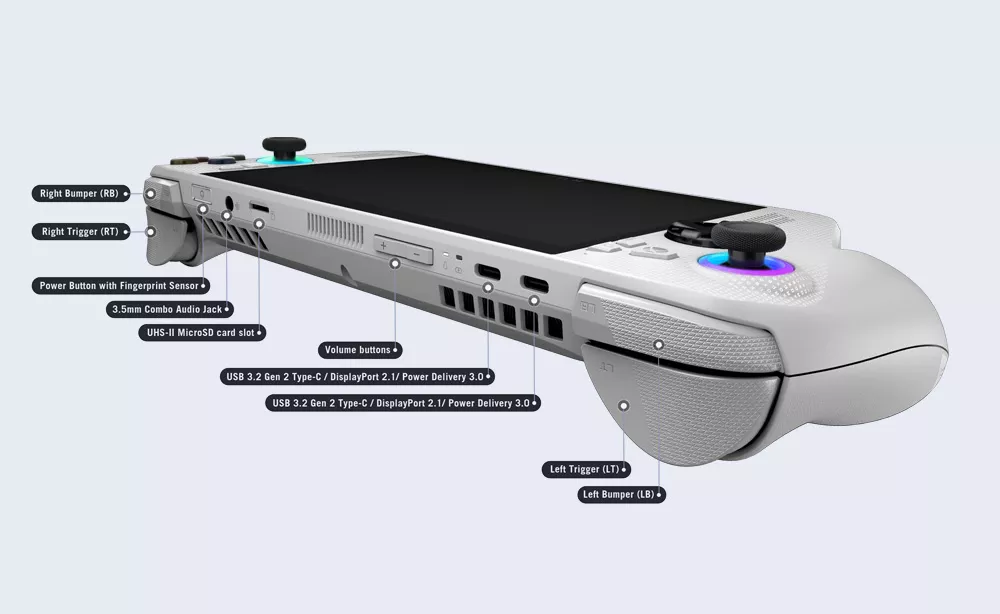
Note: if ASUS Recovery does not appear in the boot menu, the recovery partition may have been deleted. Use Method 3 below.
Method 3: Cloud Recovery via MyASUS (Recovery Partition Missing)
If the recovery partition has been removed or corrupted, you can reinstall Windows using ASUS Cloud Recovery. You will need a second computer and a USB drive of at least 16 GB.
Step-by-step:
- On a second PC, go to the MyASUS website and download the Cloud Recovery tool.
- Run the tool and follow the instructions to create a bootable USB recovery drive for the ROG Ally.
- Insert the USB drive into your Ally using a USB-C hub or connection station.
- Power on the Ally and enter the Boot Menu (Volume Down + Power).
- Select the USB drive as the boot device.
- Follow the on-screen instructions to reinstall Windows from scratch.
This method performs a full clean installation. All data, games, and settings will be wiped. The Ally will be restored to factory condition.
How to Reset the BIOS on Your ROG Ally
A BIOS reset is separate from a Windows reset. Use it if your Ally has performance or boot issues after a BIOS update, or if you have changed settings you want to undo.
- Power off the Ally.
- Hold Volume Up, then press Power to enter the BIOS setup.
- In the BIOS, navigate to the Exit tab.
- Select Load Optimized Defaults and confirm.
- Save and exit. The Ally will restart with default BIOS settings.
When a Factory Reset Is Not Enough: Hardware Problems
A factory reset fixes software issues, which include corrupted files, bad Windows updates, driver conflicts, and cluttered installs. It cannot fix hardware failures. If your ROG Ally still has problems after a reset, the cause is likely physical.
Common hardware problems and genuine ASUS replacement parts:
- Overheating, throttling, or fan noise after reset: the cooling fan may be worn or failing. A ROG Ally cooling fan or an Ally X fan replacement restores normal thermal performance.
- Stick drift or unresponsive thumbstick: a reset will not fix physical stick wear. Replace with a genuine ROG Ally joystick or look into an Ally X thumbstick replacement to fix stick drift permanently.
- Charging problems or no power: if the Ally won't charge after a reset, the charging port or battery may need replacing. Use a genuine ASUS ROG Ally charger or DC connector board.
- Buttons or triggers not responding: a reset cannot fix a physically damaged button. Genuine ROG Ally buttons and triggers or dedicated Ally X inputs restore full control response.
All replacement parts are 100% genuine ASUS, brand-new, and covered by a 12-month warranty. Ships from our US warehouse.

Frequently Asked Questions
Does a factory reset fix the ROG Ally black screen issue?
It can, if the black screen is caused by a software or driver problem. Use Method 2 (boot menu recovery) if the console will not reach Windows. If the screen stays black after a reset, the display hardware may need replacing.
Will a factory reset remove the ASUS software and ROG tools?
A local reinstall using the ASUS Recovery option reinstalls Windows with all ASUS software pre-installed, including Armoury Crate SE, Command Center, and the ROG drivers. A cloud recovery or clean Windows install will require you to reinstall ASUS tools manually from the MyASUS website.
How long does a ROG Ally factory reset take?
A standard Windows reset takes between 30 and 60 minutes. A cloud recovery via USB can take longer depending on download speed and the size of the Windows image. Keep the Ally plugged in throughout.
Does a factory reset fix ROG Ally stick drift?
No. Stick drift is a physical issue caused by wear on the joystick mechanism. A factory reset will not resolve it. Replacing the joystick with a genuine ASUS part is the correct fix.
Can I factory reset the ROG Ally X the same way?
Yes. All three methods above apply to both the original ROG Ally and the ROG Ally X. The steps are identical.