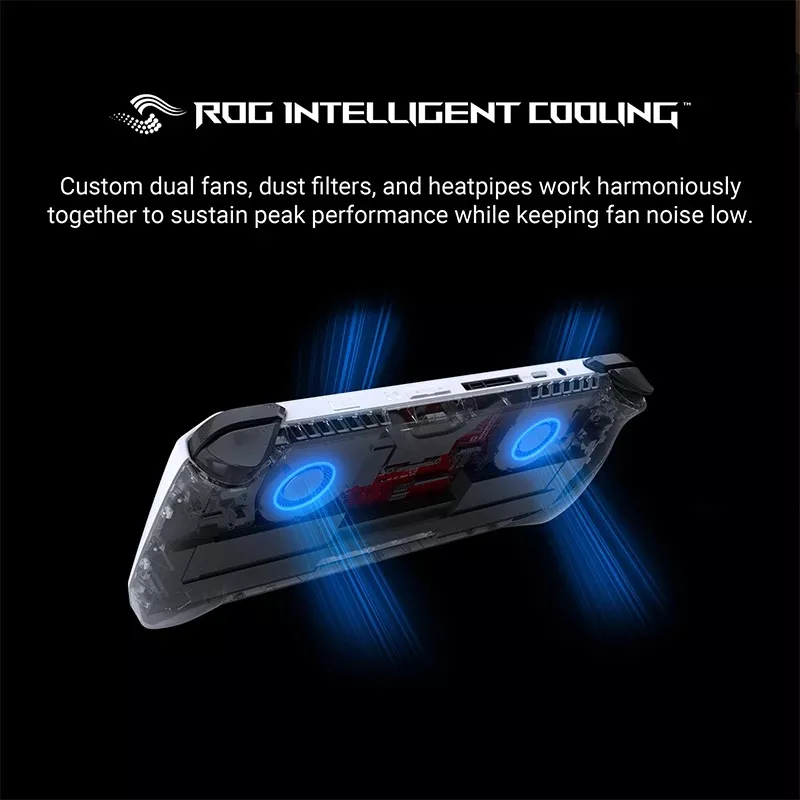
The ROG Ally X is powerful, and powerful handhelds run hot. A little heat is normal, but if yours is throttling, getting uncomfortable to hold, or shutting down, here's how to bring temperatures back under control and how to tell when the cooling hardware itself needs attention. You can even replace faulty cooling systems when necessary with our wide range of official ASUS Ally X components.
Understanding Overheating in the ROG Ally
Overheating happens when the internal components, such as the CPU and GPU, generate more heat than the cooling system can dissipate. This is common in high-performance gaming consoles like your Ally X during intensive tasks. Signs of overheating include:
- Excessive fan noise.
- Thermal throttling or reduced performance.
- High surface temperatures.
- Unexpected shutdowns.
Quick Wins to Lower Temperatures
Set a performance/TDP profile that matches your game, play in a cooler room, and keep the vents clear; don't block them on a bed or cushion. These alone fix most heat complaints.
Clean the Vents and Improve Airflow
Dust buildup chokes airflow over time. Gently clear the intake and exhaust vents with compressed air. Use the device on a hard, flat surface so air can move freely.
How to Clean Your ROG Ally X:
- Power Down the Console: Turn off the device and disconnect it from any power source.
- Use Compressed Air: Blow dust out of the vents using a compressed air can. Hold the can upright to avoid moisture.
- Gently Clean the Fan: If accessible, clean the fan blades with a soft brush to remove debris.
- Avoid Over-Cleaning: Be gentle to prevent damaging internal components.
Check Your Performance Settings
High TDP and uncapped frame rates push more heat. Cap frame rates to your screen's refresh and pick a balanced profile for less demanding games.
How to Adjust Performance Settings:
- Open the Armoury Crate app on your Ally X.
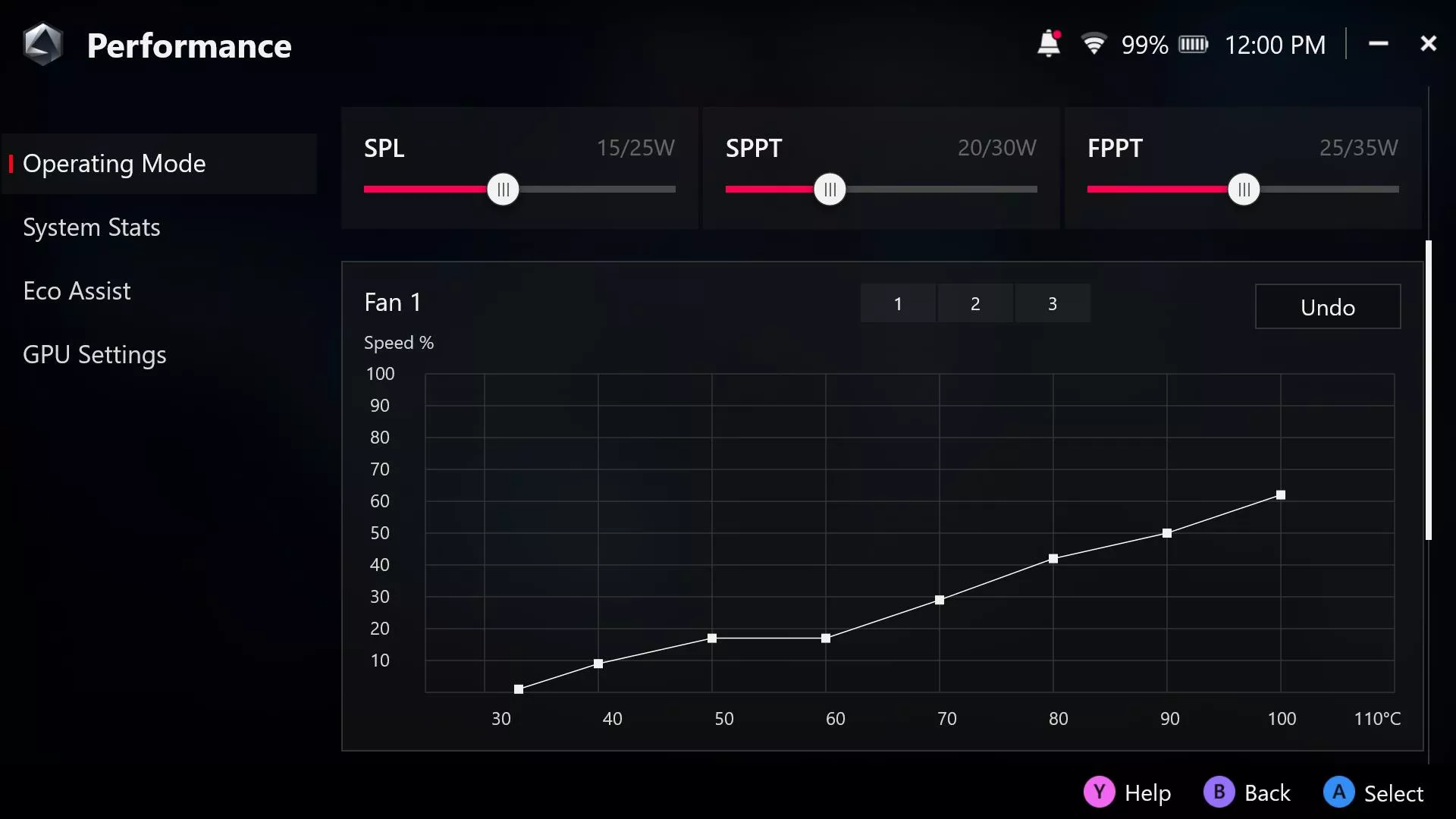
- Navigate to the Performance Settings section.
- Lower the TDP (Thermal Design Power) to reduce power consumption and heat. A setting between 10-15W works well for most games.
- Adjust the Fan Curve to increase cooling efficiency during high-demand scenarios.
- Use FPS caps to limit frame rates in games, reducing the workload on your CPU and GPU.
Use Cooling Accessories for Extra Support
For gamers who push their Ally X to its limits, external cooling accessories can significantly enhance thermal management.
Recommended Cooling Accessories:
- Cooling Pads: Place your Ally X on a cooling pad with built-in fans to enhance heat dissipation.
- Desk Fans: Direct airflow toward your console using a small desk fan during gaming sessions.
- Thermal Pads: Apply high-quality thermal pads to improve heat transfer from internal components.
Step 4: Replace a Damaged Fan
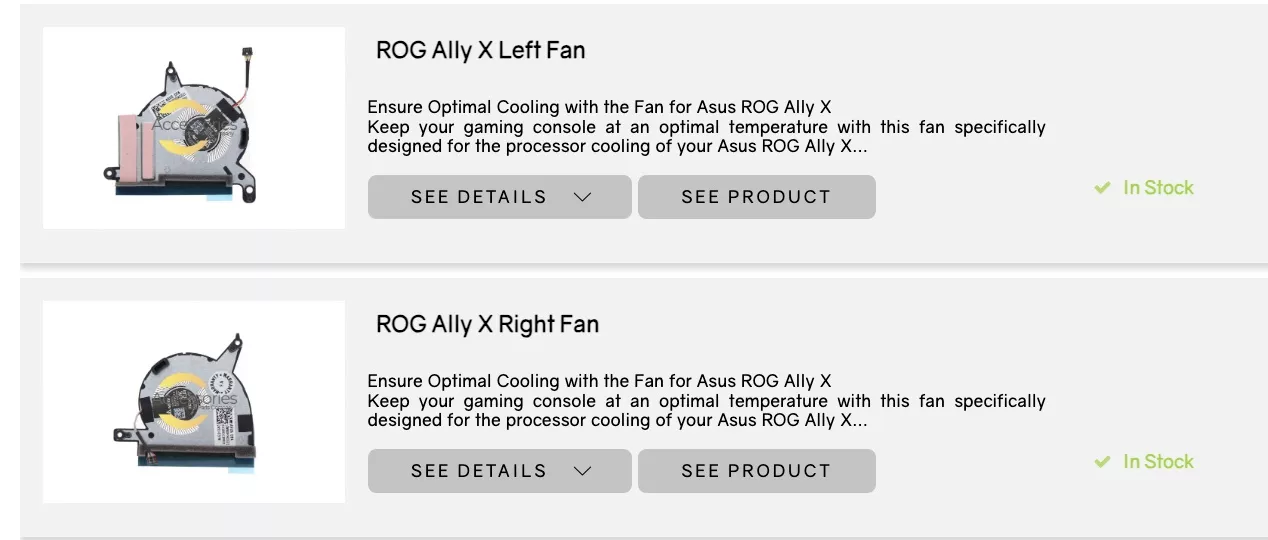
If the built-in fan in your Ally X is malfunctioning or has stopped working, replacing it is essential to prevent overheating. You can always reference the extensive tutorial videos on our YouTube channel, linked below!
How to Replace the Fan:
- Order a Genuine Replacement: Purchase an official ROG Ally X fan from ASUS Accessories to ensure a perfect fit.
- Tools Needed: Precision screwdriver set, anti-static wrist strap, and thermal paste.
-
Replacement Steps:
- Power off the Ally X and disconnect it from all power sources.
- Remove the back panel by unscrewing the fasteners.
- Locate the fan and disconnect its cable from the motherboard.
- Replace the damaged fan with the new one, securing all connections.
- Apply a thin layer of thermal paste to improve heat transfer if needed.
- Reassemble the console and test the new fan.

When the Fan Is the Problem
If your Ally X still overheats after cleaning the vents and adjusting settings, or the fan is rattling, loud, or not spinning, the fan likely needs replacing. A genuine ASUS fan restores proper cooling and protects the rest of the hardware:
- Genuine ASUS Ally X fans · original Ally fans.
It's the exact official cooling part for your handheld, with a 12-month warranty and fast US shipping.
Long-Term Tips for Overheating Prevention
- Optimize Gaming Environments: Avoid using your Ally X in hot or poorly ventilated spaces.
- Take Breaks: Allow your console to cool during extended gaming sessions.
- Keep Firmware Updated: Install the latest software updates to benefit from ASUS's thermal management optimizations.
- Monitor Temperatures: Use the Armoury Crate app to track your console's temperature and adjust settings as needed.
Conclusion
The ROG Ally X is a powerful gaming console, but managing its cooling system is essential for consistent performance and longevity. By adjusting performance settings, cleaning vents, using cooling accessories, and replacing damaged fans, you can effectively address overheating issues and enjoy uninterrupted gaming.
For deeper issues or hardware failures, ASUS Accessories has your back with genuine replacement parts, official accessories, and expert-level support. If you're unsure which part you need, feel free to reach out to our team.
Frequently Asked Questions
Why is my ROG Ally X overheating?
Common causes are high TDP settings, blocked vents, dust buildup, or a failing fan.
Is it normal for the ROG Ally X to get hot?
Some warmth under load is normal; throttling, shutdowns, or loud fan noise are not.
How do I know if my Ally X fan needs replacing?
If it rattles, runs constantly, or doesn't spin and temperatures stay high after cleaning, replace it with a genuine ASUS fan.