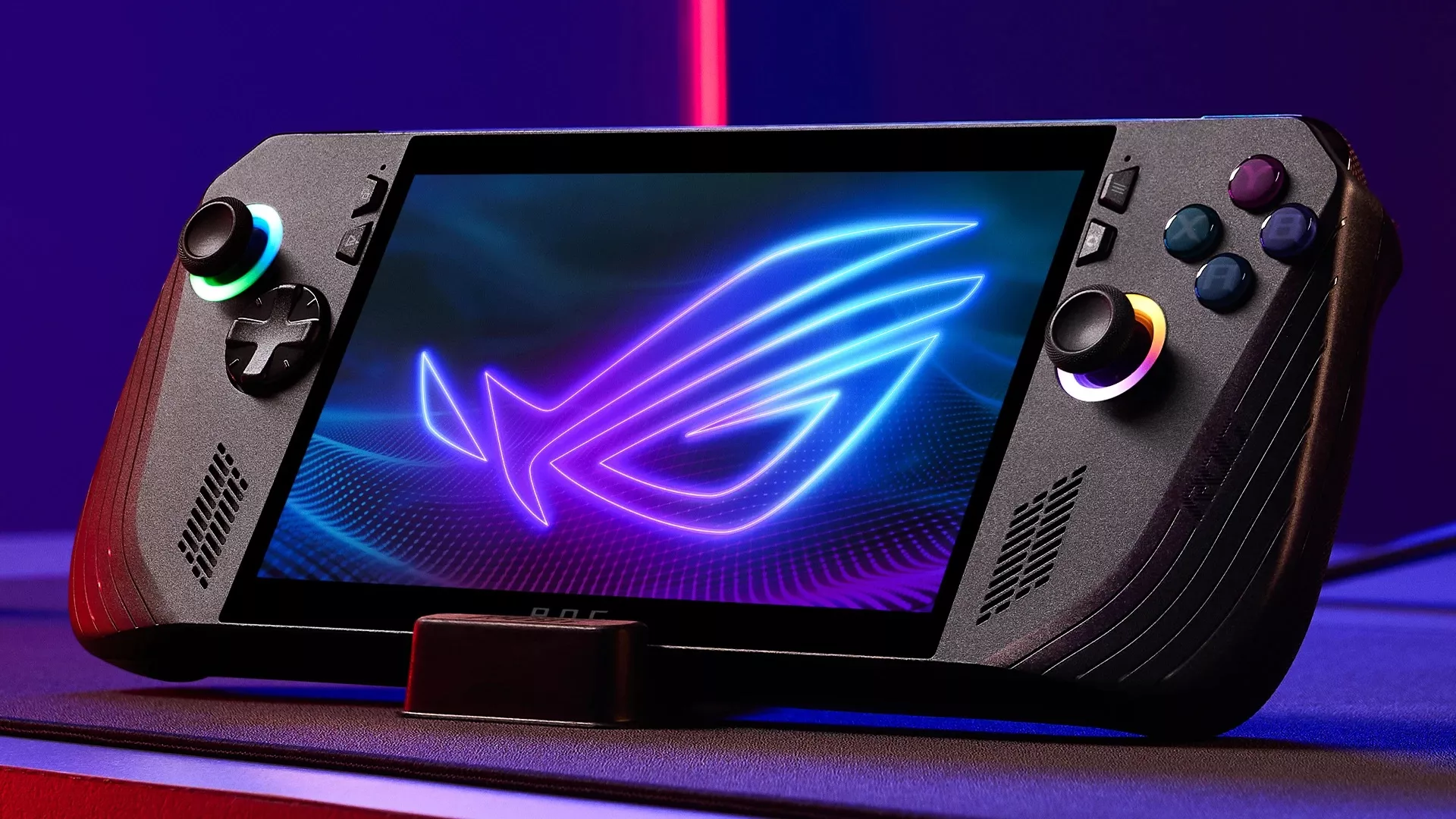
The ROG Ally X works as a portable PC, so you can plug it into monitors, storage, controllers and more. Here's how to connect each type of device, and the genuine ASUS connectors and cables you may need to do it reliably. Expanding the functionality of the Ally X can transform it into a more versatile gaming and productivity device, but ensuring seamless operation requires the right docks and accessories.
Connect an External Monitor or TV
Use the USB-C port (with DisplayPort support) or a USB-C dock to output to a monitor or TV. Set your display mode in Windows once connected. Using an external display can create a more immersive gaming experience, allowing users to enjoy their games on a larger screen.
Choosing the right connection method
To connect the ROG Ally X to a monitor or TV, you will need one of the following:
- A USB-C to HDMI cable for monitors and TVs with HDMI input
- A USB-C to DisplayPort cable for gaming monitors that support DisplayPort
- A docking station with HDMI or DisplayPort to enable multiple device connections
ASUS Accessories offers docking stations that provide charging, video output, and multiple USB ports, making them ideal for expanding your gaming setup.
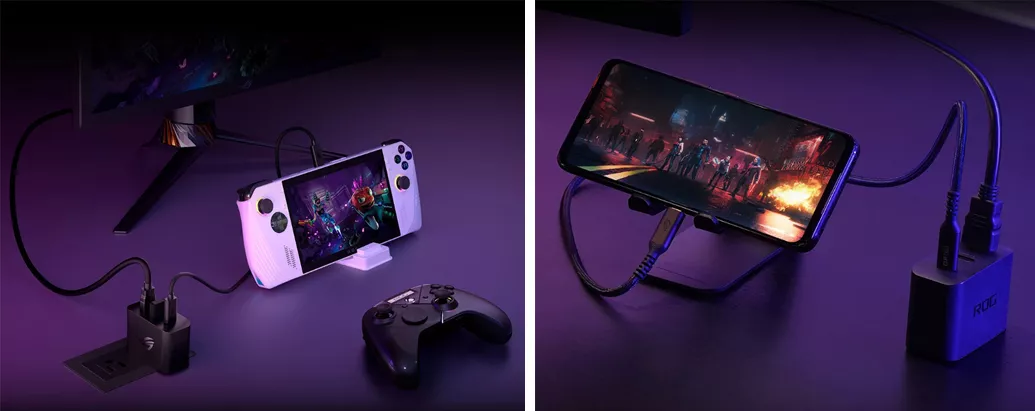
The ASUS ROG Gaming Charger Dock is also a great option! Simply connect your ROG Ally with a USB-C cable and you'll be able to connect your device to monitors or TV using a regular HDMI cable, all while charging it simultaneously!
Connect the Ally X to a monitor
- Turn off the ROG Ally X before connecting any cables.
- Plug the USB-C to HDMI or DisplayPort cable into the ROG Ally X.
- Connect the cable to the monitor using an HDMI or DisplayPort connection.
- Power on the monitor first, then turn on the ROG Ally X.
- Adjust the display settings in Windows to ensure the external monitor is properly configured.
Troubleshooting display issues
If the external monitor does not detect your Ally X, consider the following solutions:
- Try a different cable or dock. Not all USB-C to HDMI connections support high refresh rates or resolutions. Ensure your equipment supports at least 1080p at 120Hz or 4K at 60Hz.
- Check the USB-C port. The ROG Ally X has multiple USB-C ports, but not all support video output.
- Update GPU drivers. Ensure your AMD graphics drivers are up to date through Armoury Crate or Windows Update.
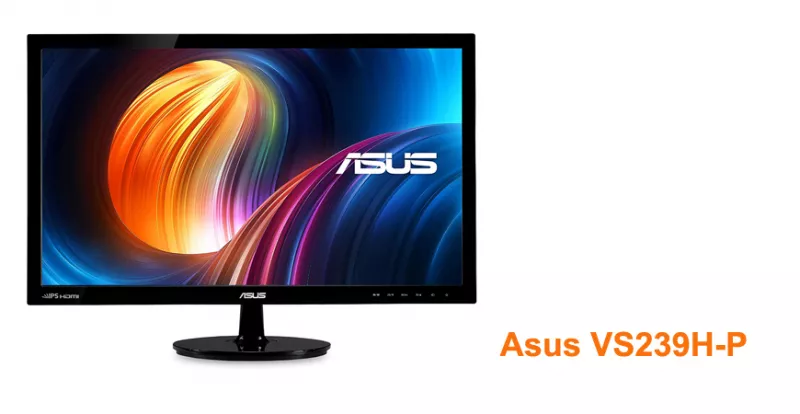
Add Storage and Drives
Connect external SSDs and drives over USB-C, or expand internal storage. Use a powered hub if you're connecting several devices at once.
Pair Controllers and Peripherals
Pair Bluetooth controllers, keyboards and mice, or connect them over USB-C for lower latency. Connecting an external keyboard, mouse, or gaming controller can significantly improve the ROG Ally X experience, especially when using it in desktop mode.
- For wired USB devices: use a USB-C hub or docking station to connect peripherals.
- For Bluetooth devices: navigate to Windows Settings, go to Bluetooth & Devices, enable Bluetooth, and pair the device.
- For wireless USB dongles: plug the receiver into a USB-C hub or dock to establish a connection.
Using external controllers
For a more traditional gaming setup, the ROG Ally X is compatible with various controllers:
- Xbox Wireless Controllers: Connect via Bluetooth or USB-C
- PlayStation DualSense (PS5) Controllers: Connect via Bluetooth or wired
- ROG Raikiri Pro: A high-performance gaming controller optimized for Windows and ROG devices
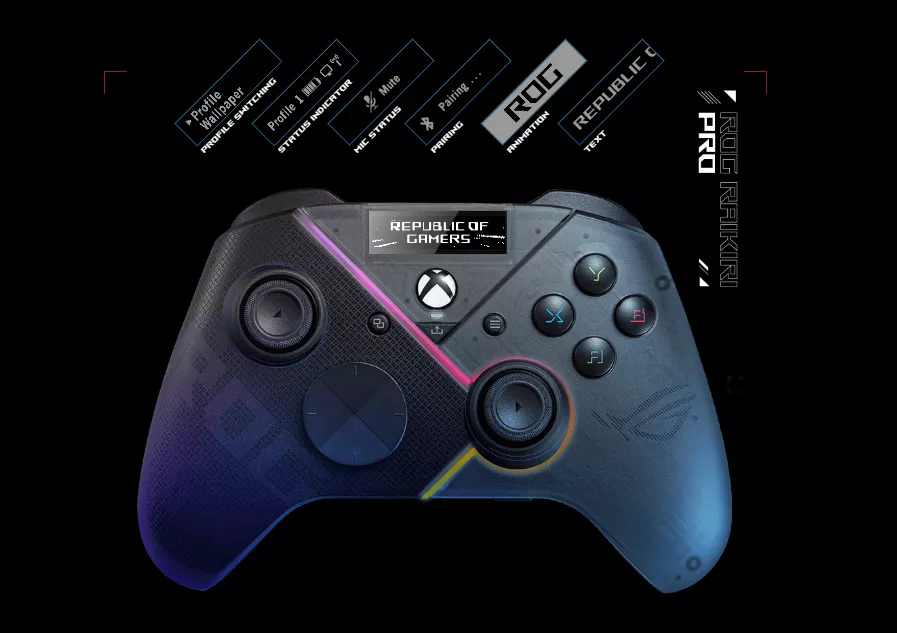
For those in need of replacement joysticks, buttons, or triggers, ASUS Accessories offers a full selection of official ROG Ally X parts, including joysticks, buttons, screws, and more.
Connectors and Cables You May Need
Reliable connections depend on the right port and cable. If your Ally X port is damaged, or you need the correct genuine ASUS connector, find it here:
- Genuine ASUS Ally X connectors · original Ally connectors.
- Browse all genuine ASUS ROG Ally X parts for chargers, cables and more.
All genuine ASUS parts, with a 12-month warranty and fast US shipping.
Docking Station
A docking station enhances the Ally X's capabilities by allowing users to charge the device while playing, connect multiple peripherals including external storage, and output video to a monitor via HDMI or DisplayPort. For a seamless experience, explore our docking stations, designed to support Ally X cross-device usage.
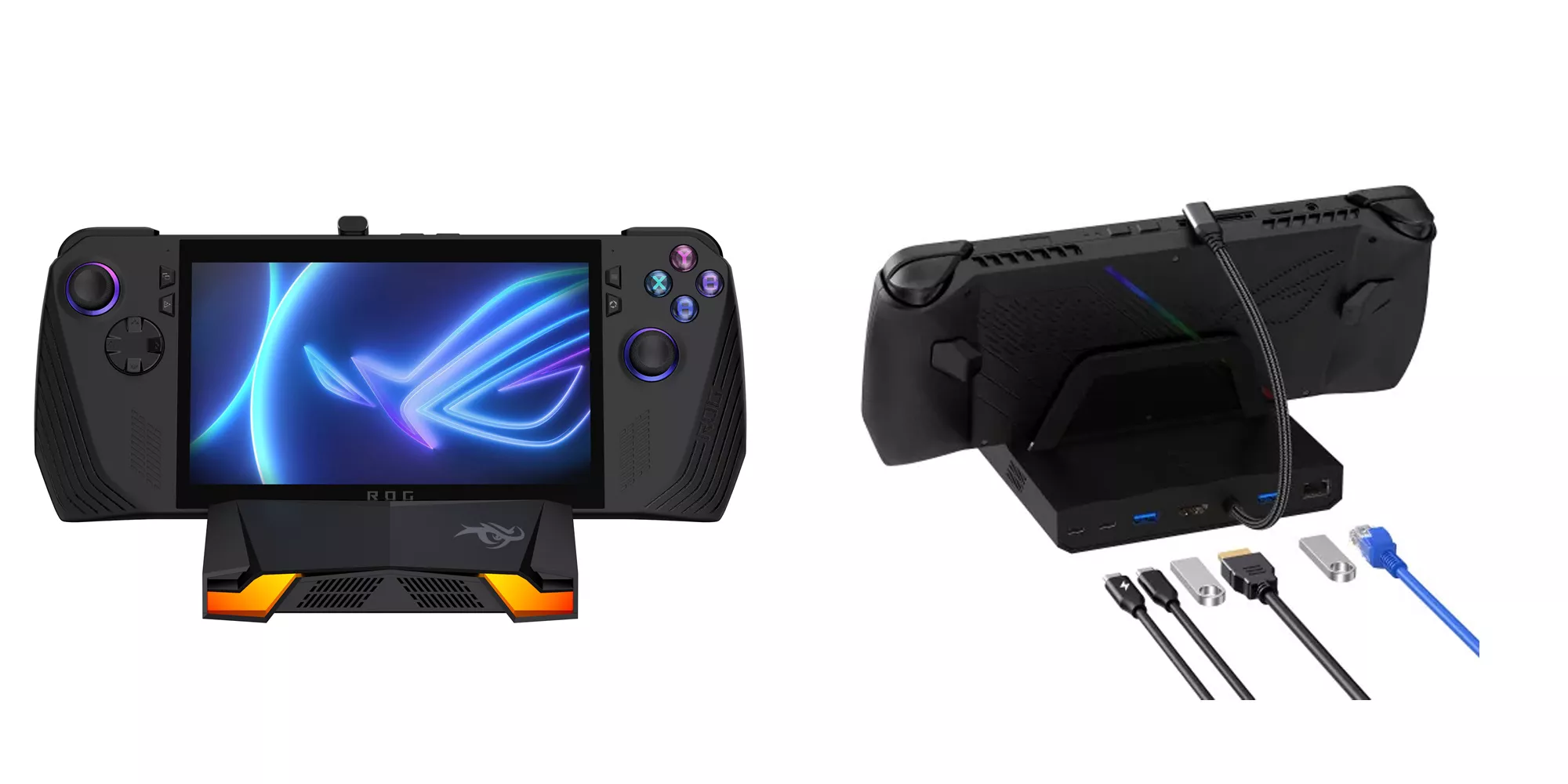
The ROG Ally X Docking Station by iBroz Gaming features a 100W USB Type-C PD (Power Delivery) port for optimal charging power.
Simplifying Compatibility with My ASUS Parts
Finding the right accessories and replacement parts for your Ally X can be a challenge with so many third-party options on the market. To ensure full compatibility, ASUS Accessories offers the My ASUS Parts account, which provides:
- Instant compatibility checks: Save your device's serial number for easy access to compatible parts.
- Order history access: Quickly find and reorder past purchases.
- Personalized recommendations: Receive tailored suggestions based on your specific ASUS device.
Creating a free My ASUS Parts account makes finding ASUS-certified parts and accessories easier than ever. Whether you're a tech enthusiast or a professional repair technician, creating an account is your first step toward hassle-free repairs and guaranteed equipment safety.
Create your My ASUS Parts Account
Step-by-Step Repair Tutorials on YouTube
For those looking to repair or upgrade their ROG Ally X, ASUS Accessories provides a dedicated YouTube channel, Accessoires ASUS TV, featuring:
- Step-by-step disassembly guides
- Troubleshooting videos for display, connectivity, and hardware issues
- Tutorials on replacing joysticks, batteries, and buttons
Subscribe to Accessoires ASUS TV for expert repair and upgrade support.
Choose ASUS Accessories for your ROG Ally X
With the right external devices, the Ally X becomes more than just a handheld console: it transforms into a versatile gaming and productivity powerhouse. Whether connecting to an external monitor, a mechanical keyboard, or gaming controller, ensuring proper system harmony is key to maximizing performance.
- Need official ASUS parts for your ROG Ally X? Explore our full collection here.
- Looking for docks and accessories? Browse our docking stations and related peripheral upgrades.
- Want to ensure perfect compatibility? Sign up for My ASUS Parts to make finding components effortless.
- Need help with installation? Watch our repair tutorials for expert guidance.
By using official ASUS accessories and certified parts, users can ensure their ASUS handheld operates at peak performance for years to come.
Frequently Asked Questions
Can the ROG Ally X connect to a monitor?
Yes: over USB-C with DisplayPort support, or through a USB-C dock.
What do I need to connect devices to my Ally X?
A USB-C connection and, for multiple devices, a powered hub. Use genuine ASUS connectors if a port or cable needs replacing.
My Ally X USB-C port stopped working: what now?
If the port is damaged, replace it with a genuine ASUS connector made for your handheld.