Asus Accessories is an official Asus-approved reseller with over 20 years of experience, specializing in 100% genuine Asus parts and accessories. As experts on the ROG Ally and ROG Ally X, we offer a full range of OEM components, including speakers, screens, fans, and more, backed by fast international shipping, secure payment, and dedicated customer support to ensure you find the exact parts your device needs.
If your Ally X speaker has experienced crackling or distorted audio on one side (or both), this guide walks you through how to tell if it’s a software issue, how to open the unit, swap out speaker modules, and test. Whether you've got the Ally or Ally X, this will help you restore clean sound.
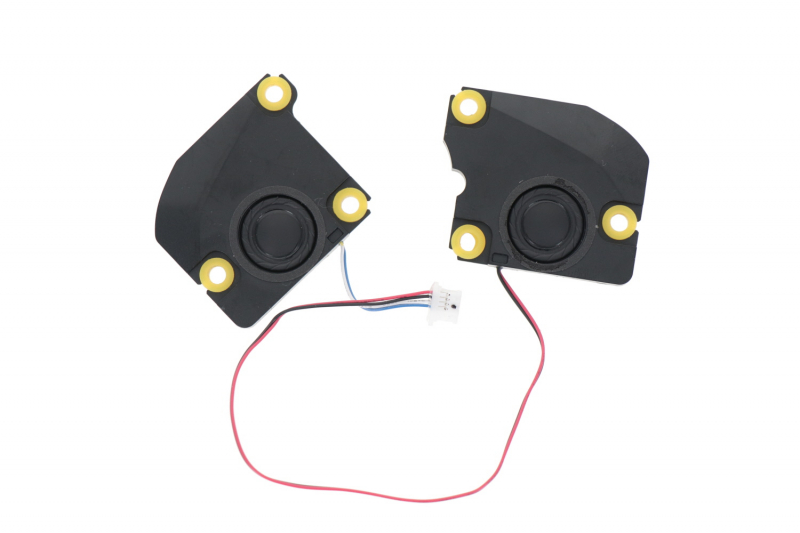
1. Is it software or is it driver/hardware failure?
Before disassembling your Ally, rule out the easiest fixes first:
- Check whether the crackling or distortion happens only in certain situations (e.g. in games, high volume, low performance modes). Sometimes when the device is underpowered (low TDP), or when audio enhancements (like equalizer, spatial sound) are on, crackling can appear due to software clipping. Community reports show disabling enhancements or increasing TDP helps.
- Update your OS, audio drivers, firmware/BIOS for the ROG Ally / Ally X. Sometimes driver or BIOS updates include fixes for audio glitches. See also: Solve boot issues on your Asus ROG Ally and Ally X
- Test with different audio sources: music, videos, system sounds. If one speaker sounds distorted in all sources, more likely hardware problem; if only in specific apps, likely software.
- Adjust volume and disable enhancements. If crackling disappears when volume is lower or enhancements are off, it could be software clipping or driver settings rather than a physically “blown” speaker.
2. Tools & safety
To replace speaker modules safely, gather:
- A clean, static‑free workspace
- A small Phillips screwdriver and maybe T5/T6 Torx, depending on your unit’s screws
- Plastic spudgers / pry tools
- Replacement speaker module(s), either left, right, or both. You can find genuine parts at places like the Ally X speaker module page.
- Tweezers for handling screws / flex cables
3. Opening the chassis & accessing the speaker
- Power off the device completely and disconnect from power. Remove any external cables.
- Remove the back cover. This usually involves unscrewing a set of screws and gently prying the cover off using a spudger.
- Locate the speaker modules. On the Ally, the left and right speaker modules are mounted near the bottom front; check guides like the “Major Components of the ROG Ally” for visuals.
- If replacing only one side (left or right), detach only that speaker’s flex cable or connector. Unscrew its housing, remove the old speaker.
- Install the new module. Ensure it matches orientation, alignment, and that the connector is seated properly. Secure screws gently but firmly.
-
Before screwing everything back, check speaker grills and openings for debris or dust. Even small particles lodged in the grill can cause crackle or reduced volume on one side.

4. If one speaker is quieter than the other
Sometimes the sound isn’t crackling but instead one side is noticeably quieter. Possible causes & remedies:
- Grill blocked or debris inside speaker module.
- Connector not fully seated or flex cable damaged. Try reconnecting firmly and inspect for damage.
- Speaker module itself may have lower sensitivity (if aftermarket or wrong part). Use genuine “Asus handheld speaker module” parts. See the official speaker module page.
- Software imbalance: check sound settings / balance settings in OS to ensure both channels are equal.
5. Reassembly and running an audio test
- Once the speaker module(s) are replaced, carefully close the chassis, re‑securing all screws and connectors.
- Power on the unit.
- Run an audio test: play something with clear stereo separation (e.g. a test file or song) to see if both left and right are loud and clear. Also test at various volumes.
- Check for crackle or distortion. If it’s gone, great. If it’s still there, double check connections, firmware, or consider RMA if hardware is defective.
6. Get replacement parts & support
If you decide you need a replacement speaker (left, right, or both), or maybe other parts:
- Replacement speakers: Ally X speaker modules
- Other parts you may need: speaker cable replacement cable, battery battery module, button options
- Official support & manuals: see the support center or submit a support request.
- For reviews and trust‑signals: check what others are saying on Verified Reviews.
7. Summary: What to do when
Here’s a quick decision tree:
-
Crackling only in certain apps or under heavy load
- Likely cause: Software clipping or driver/enhancement issue
- Fix: Disable audio enhancements, increase TDP, and update firmware/drivers
-
Crackle or distortion in all audio sources
- Likely cause: Hardware or speaker failure
- Fix: Open the device, inspect the speakers, and replace the faulty module if needed
-
One speaker is quieter than the other
- Likely cause: Debris, partial failure, or mis-seated connector
- Fix: Check the speaker grill, reseat the connector, and replace the module if needed
If you’re hearing distorted sound, don’t assume the worst right away. Many times it’s a driver or software setting. But if the issue persists, replacing the speaker module is a viable option—especially using genuine Asus parts. Follow safe steps to open, clean, replace, and test. With proper replacement, your Ally or Ally X should sound as good as new again.