Troubleshooting audio issues on your Asus laptop
Before deciding to replace your Asus laptop speakers, it’s important to determine whether the issue is hardware-related. Our goal is to help our clients retain their devices for as long as possible by providing original Asus spare parts. Sometimes however, the root cause could be software, so it's best to check that first - here are a few steps to troubleshoot your laptop’s audio:
1. Check software and audio settings
- Ensure that your laptop's volume is not muted and is set to an appropriate level.
- Verify that the correct audio output device is selected in Windows by navigating to Settings > Sound > Output device.
- Update your audio drivers by visiting the Asus website or using Windows Update (Device Manager > Sound, video and game controllers > Update driver).
- Test audio using headphones or external speakers—if sound plays correctly, the issue is likely with the internal speakers.

2. Run the windows audio troubleshooter
Windows has a built-in tool to detect and fix common audio problems. To run it:
- Open Settings and go to Update & Security > Troubleshoot.
- Select Playing Audio and run the troubleshooter.
- Follow the prompts to resolve any detected issues.
3. Update BIOS
Sometimes, outdated BIOS firmware can cause compatibility issues with your laptop’s audio system.
How to Update Your BIOS:
- Visit the Asus Support Website and enter your laptop model to find the latest BIOS version.
- Download the updated BIOS file and follow the installation instructions provided by Asus.
- Restart your laptop and check if the audio issue is resolved.
Note: Updating the BIOS should be done carefully, as an incorrect update can affect system stability.
4. Check for hardware issues
If the software side checks out and your audio is still not working, your Asus laptop’s internal speakers may be damaged. Common signs include:
- Crackling, distorted, or buzzing sound when playing audio.
- Complete loss of sound, even when software settings appear correct.
- Intermittent audio problems that worsen over time.
If you are experiencing any of these issues, replacing your laptop’s speakers may be necessary.
![Notebook/Commercial NB/Desktop/AIO/Monitor] Harman/Kardon Audio Introduction | Official Support | ASUS Global](https://kmpic.asus.com/images/2021/07/19/e512ef6b-c1d4-40f1-8eeb-f30cf682e219.jpg)
Finding the correct Asus replacement speakers
Using original Asus replacement speakers is crucial to maintaining the sound quality and longevity of your laptop. At Asus Accessories, we only provide 100% authentic Asus-manufactured parts to ensure seamless compatibility and performance.
Ensure you order the right speaker:
- Find your laptop’s serial number – Your laptop’s serial number is typically located on the bottom of the device or in your system settings (Settings > About).
- Contact our support team – Send us your serial number, and our specialists will help you find the exact replacement speakers for your specific Asus laptop model.
- Make a My Asus Parts Account – Signing up for a My Asus Parts account allows you to access a personalized parts catalog, ensuring you always order guaranteed compatible components for your device.

How to replace Asus laptop speakers
Once you have the correct replacement speakers, follow these steps for a safe and successful installation:
Step 1: Gather tools
You’ll need:
- A small Phillips-head screwdriver
- A plastic pry tool (to safely open the laptop case)
- Anti-static wrist strap (recommended to avoid damaging internal components)
Step 2: Power down and disassemble
- Turn off your laptop and unplug it from any power source.
- Remove the battery if your laptop has a removable one.
- Use a screwdriver to remove the bottom panel screws.
- Carefully use a plastic pry tool to detach the back panel from the laptop.
Step 3: Locate and remove the old speakers
- Find the internal speakers (usually located near the bottom corners of the laptop).
- Gently disconnect the speaker cable from the motherboard.
- Unscrew any mounting screws and carefully remove the old speakers.
Step 4: Install the new speakers
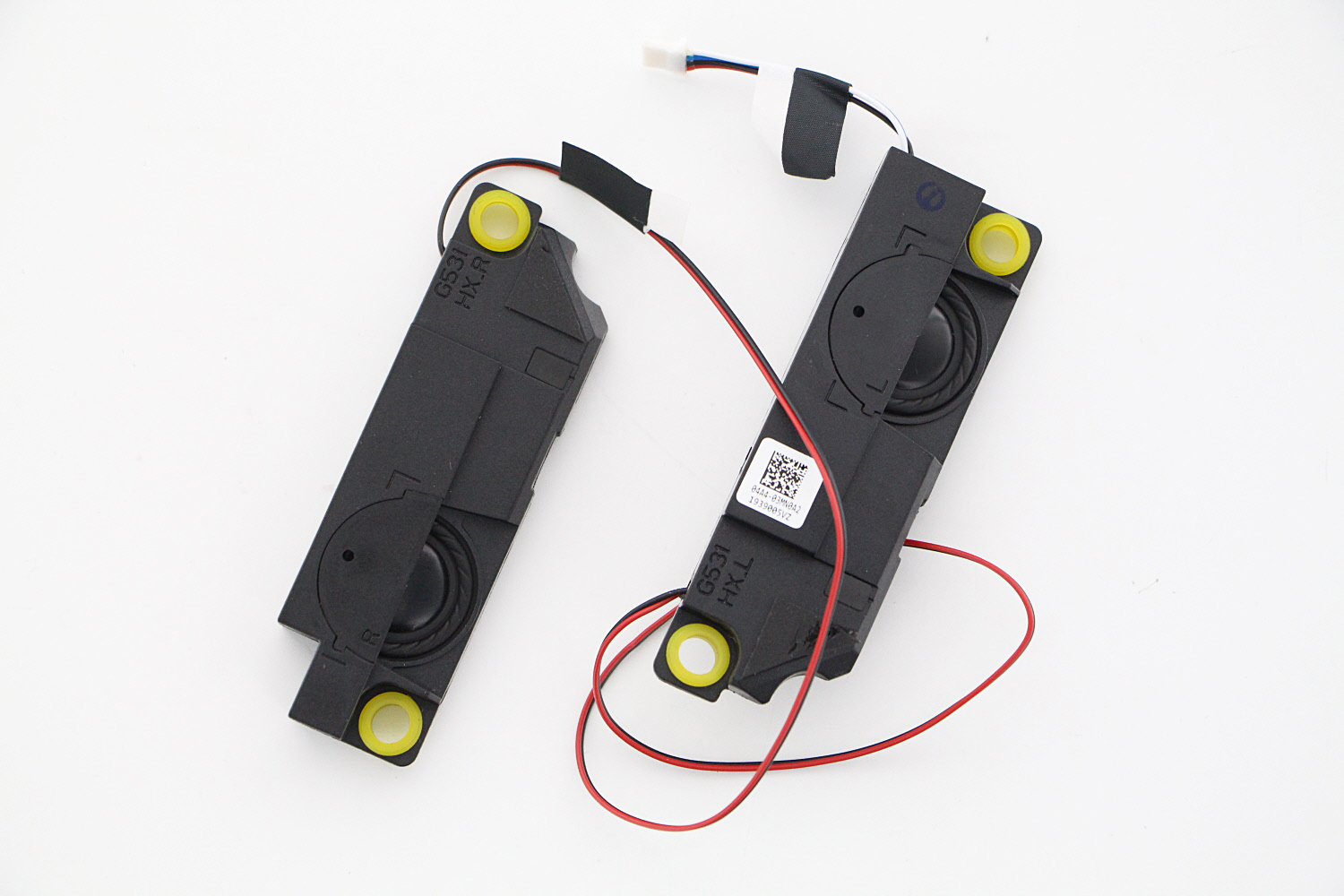
- Place the new Asus replacement speakers in the correct position.
- Secure them with screws and reconnect the speaker cable to the motherboard.
- Ensure all connections are secure before reassembling the laptop.
Step 5: Reassemble and test
- Reattach the bottom panel and tighten all screws.
- Reinstall the battery (if removed) and power on your laptop.
- Play audio to test the new speakers and verify that they are functioning properly.
Why buy speakers from Asus Accessories?
At Asus Accessories, we provide high-quality, Asus replacement parts to keep your laptop in top condition. Here’s why we’re the #1 choice for Asus components:
- 100% Official Asus Parts – We source all components directly from Asus, ensuring perfect compatibility.
- Fast Delivery – Get your replacement parts quickly to minimize downtime.
- Hundreds of 5-Star Reviews – Trusted by customers worldwide for genuine, high-quality parts.
- Expert Support – Our specialists help you find the right part for your Asus laptop.
If your Asus laptop audio isn’t working properly, don’t settle for poor sound quality. Order new Asus speakers from our site today and restore your laptop’s performance.
Remember to sign up for a My Asus Parts account to ensure you always find the correct, guaranteed-compatible replacement parts for your Asus laptop!
