A frozen or unresponsive ROG Ally is frustrating, but most of the time you can fix it yourself in a few minutes. This guide covers how to restart and troubleshoot both the original ROG Ally and the Ally X, and what to do if the problem keeps coming back, because that usually means hardware rather than software.
Common symptoms
- Ally won’t restart after shutdown
- Stuck on the loading or Windows logo screen
- Black screen after reboot
- Shuts off mid-boot or randomly
- Fan spins but nothing appears on screen
Force Restart Your ROG Ally
The simplest solution is often the most overlooked. We recommend trying this option before attempting other fixes.
Hold the power button for about 10 seconds until the handheld powers off, then press it again to restart. This clears most temporary freezes.
Tip: If the power button feels unresponsive or sticks, it may be a hardware issue. You can browse official ROG Ally and Ally X power button replacements on our site!
Fix a Frozen or Black Screen
Try a force restart first. If the screen stays black but the device powers on (fans spin, lights show), connect it to a charger and an external display to confirm whether it's a display or a power issue.
Things to try with your power supply:
- Use a genuine ASUS ROG Ally charger and dock.
- Avoid third-party USB-C chargers, which may not deliver consistent voltage.
- Plug directly into a wall outlet rather than a surge protector.

Troubleshoot Common Software Issues
Update Windows and the Armoury Crate app, check for driver updates, and reset the Command Center if buttons feel laggy. Most software gremlins clear up here.
To update your Ally:
- Open the MyASUS app and check for BIOS or firmware updates.
- Go to Windows Update in Settings to check for the latest drivers.
Always keep your device fully updated to avoid startup conflicts and performance issues.
Boot into Safe Mode
If your Ally is stuck in a boot loop or gets stuck after startup, Safe Mode can help isolate the issue. The process is generally the same as booting any other Windows 11 device.
Methods to enter Safe Mode:
Through Windows settings:
- This is the standard and recommended method when you can access Windows.
- Go to Windows Settings > Recovery > Advanced startup > Restart now.
- After the restart, navigate through Troubleshoot > Advanced options > Startup Settings > Restart.
- You'll then be presented with options to boot into Safe Mode (usually by pressing 4 or F4).
Forcing Windows Recovery Environment (WinRE):
- If you can't access Windows normally, you can force WinRE by interrupting the startup process.
- Power on your Ally/Ally X, and as soon as the ASUS logo appears, force a shutdown by holding the power button.
- Repeat this process a couple of times. Windows should then boot into WinRE.
- From there, you can follow the same steps as above (Troubleshoot > Advanced options > Startup Settings > Restart) to enter Safe Mode.
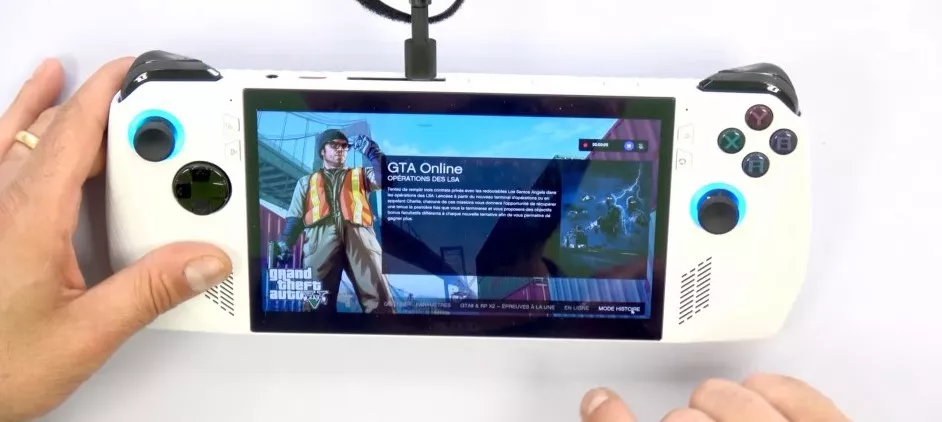
Perform a factory reset
If nothing else works, a full system reset may be necessary. A pro tip is to keep your Ally plugged in during this whole process, just in case!
How to reset your ROG Ally or Ally X:
- Go to Settings > System > Recovery.
- Click Reset this PC and choose either:
- Keep my files (recommended first). This option attempts to reinstall Windows while preserving your personal data. Just know that it will remove installed apps.
- Remove everything (use only if necessary). This will be a complete wipe!
Note: Back up important files first. You can use cloud storage or an external drive.
When It's a Hardware Problem
If your Ally keeps freezing, won't hold a charge, or won't power on after a clean restart, the issue is likely hardware and it's repairable with a genuine ASUS part:
- Won't power on / won't charge → check the charger first: genuine ASUS Ally X charger or original Ally charger.
- Drains fast or dies suddenly → the battery may be worn: Ally X battery · Ally battery.
- Overheating or constant fan noise → see Ally X fans and Ally fans.
Every part is genuine ASUS, the exact fit for your handheld, backed by a 12-month warranty and fast US shipping.
Troubleshooting your Asus gaming console can be frustrating, but in most cases, the fix is within reach! Whether it's a stuck power cycle, a power delivery issue, or a software hang-up, these steps should help you get back in the game. For deeper issues or hardware failures, Asus Accessories has your back with genuine replacement parts, official accessories, and expert-level support. If you're unsure which part you need, feel free to reach out to our team.


Frequently Asked Questions
How do I force restart a frozen ROG Ally?
Hold the power button for about 10 seconds until it powers off, then turn it back on.
My ROG Ally still freezes after a restart, why?
A recurring freeze after a clean restart usually points to hardware (battery, charger or cooling). Match the symptom to the genuine ASUS part.
Does troubleshooting void my warranty?
Software troubleshooting doesn't; for hardware, a genuine ASUS replacement part keeps your handheld within spec.